About Me

My photo
Northglenn, Colorado, United States
I'm primarily a BI Developer on the Microsoft stack. I do sometimes touch upon other Microsoft stacks ( web development, application development, and sql server development).
Showing posts with label excel. Show all posts

Thursday, June 02, 2016

0.00000000000 as Text Error when exporting to Excel from SSRS.


Just a quick tip/fix for this problem. When exporting a report to excel, sometimes you'll end up getting a long text version of the number zero instead of the actual number -- causing issue and/or time correcting the issue for users.

The fix is simple, in this case, I just cast the numbers as decimal in my query forcing it to treat it as such.  (ex:  CAST(PCT AS DECIMAL) AS PCT  )


Wednesday, August 05, 2015

Running specialized CSV in SSRS with different device settings.

So this will be useful if you want to change the default settings for a single report, and not all reports, that are exported to CSV. An example, making semi-colon or tab delimited values.

A good read on bypassing the "CSV Device Information Settings" used on the reporting server.

http://blogs.infosupport.com/modify-reporting-services-export-to-csv-behavior/

Here are a list of the settings that can be changed in the url:
https://msdn.microsoft.com/en-us/library/ms155365%28v=sql.105%29.aspx


So instead of using the standard user-friendly interface, you will be using the file system interface, found in /ReportServer/Pages/ReportViewer.aspx?

and adding on your commands, just like you would do with parameters, to override the settings:

 &rs:Command=Render&rs:Format=CSV&rc:ExcelMode=true&rc:Qualifier=%22&rc:NoHeader=false&rc:FieldDelimiter=, 

Note:
This however, still leaves the problem with the qualifier. I was told that a csv file being sent to a third-party had to have quotation marks around each value (e.g. "First Name"). This doesn't seem possible in SSRS. The qualifier will only put quotes around a field if there was already a quote in the value (e.g. William "Big Bill" Andrus => "William "Big Bill" Andrus") which would also give incorrect usage of quotes if you hard code them (e.g. "First Name" => ""First Name""). And, there seems to be no way to force the qualifier to display. 

Friday, March 29, 2013

Exporting to Excel in SSIS

How to export data to excel. I did follow other blogs, but they leave out vital information to get it working, so here is my attempt.

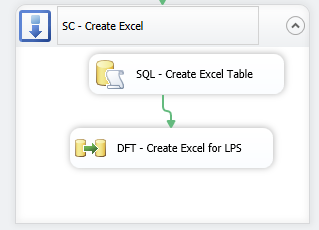
Preview of what's to come from Control Flow view:


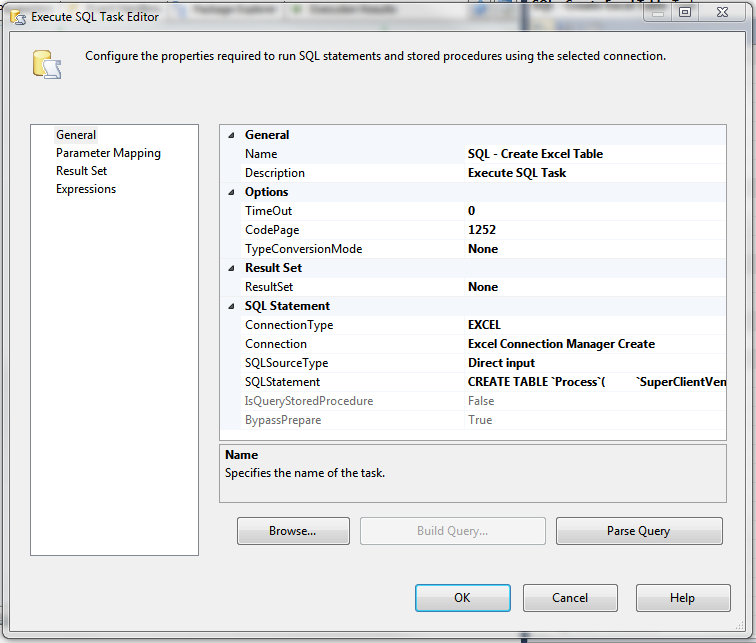
You're going to need to first create a Execute SQL Task, because this is going to be used to create your sheet in excel. The syntax is similar to SQL Server's Create Table, except that it uses the accent quote `  instead of squaring the names in brackets i.e.: [name]. It also seems to have a problem with numeric and character cell size limits.


In this case, I'm creating an excel sheet called Process:


CREATE TABLE `Process`(
 `SuperClientVendorID` INT,
 `LoanNumber` varchar(25),
 `OpenIndicator` char(3),
 `CloseIndicator` char(3),
 `UpdateIndicator` char(3),
 `ParentRefID` INT,
 `Open_RailDescription` varchar(200),
 `AssignedVendorID` INT ,
 `CloseReason` varchar(200) ,
 `RefID` numeric(18, 0),
 `CloseDate` date ,
 `InheritedAttribute` varchar(3) ,
 `ProcessorCd` varchar(50) ,
 `ProcessStartDate` date ,
 `ReOpenIndicator` varchar(3) ,
 `NoteType` varchar(255) ,
 `Note` text
)

Now, lets create a Excel Connection Manager to dynamically create our file. You're going to need a dummy file to initially create an connection instance. In this dummy file, I had my first rows of names, but I'm not sure if this is really needed.

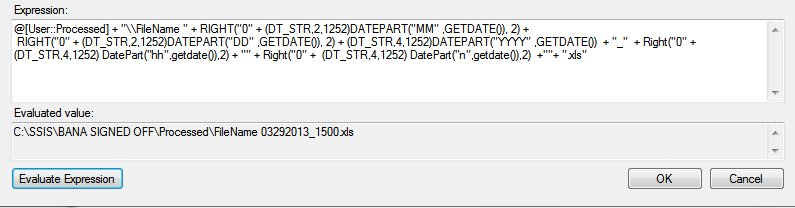
 You're going to point the connection to the excel file for now. Right click on the newly created connection and select properties. In this window, under expressions you're going to create a ExcelFilePath expression:


My text, I use a variable called Processed to represent the file path and folder. I then add a datetime string to the end of the file.

@[User::Processed] + "\\FileName " + RIGHT("0" + (DT_STR,2,1252)DATEPART("MM" ,GETDATE()), 2) +
 RIGHT("0" + (DT_STR,2,1252)DATEPART("DD" ,GETDATE()), 2) + (DT_STR,4,1252)DATEPART("YYYY" ,GETDATE())  + "_"  + Right("0" + (DT_STR,4,1252) DatePart("hh",getdate()),2) + "" + Right("0" +  (DT_STR,4,1252) DatePart("n",getdate()),2)  +""+ ".xls"


I had a problem with the connection at this point, I took the ExcelFilePath name from properties and moved my dummy excel there and renamed it. This won't be a problem when it runs, since the name will change given the time. If you need to edit the file, you will need to recreate/rename your dummy file.

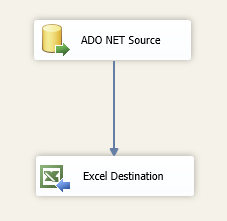
Now create a Data Flow Task and inside that task, create your source file, where you will be pulling the data from. Setup your query to pull the data, etc.... And create your destination excel file.


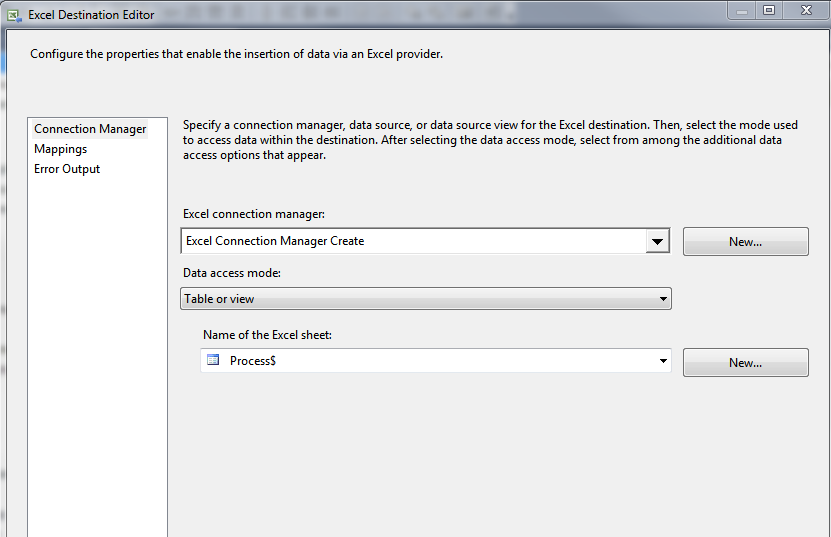
Point it to your dummy excel file and dummy sheet name.


Run the program, and hope for no errors.


Helpful resources on the same thing:
http://geekepisodes.com/sqlbi/2011/creating-excel-files-xls-dynamically-from-ssis/
http://jandho.blogspot.com/2012/03/ssis-package-to-export-to-new-excel.html

Excel Error in SSIS - 64bit runtime error

Running a very simple SSIS 2012; which pulls data from an excel file. I've done this a million times, but all of a sudden I ran into this tidbit when running on a new machine:

Errors:


  • [Excel Source [39]] Error: SSIS Error Code DTS_E_CANNOTACQUIRECONNECTIONFROMCONNECTIONMANAGER.  The AcquireConnection method call to the connection manager "Excel Connection Manager" failed with error code 0xC0209303.  There may be error messages posted before this with more information on why the AcquireConnection method call failed.
  • [SSIS.Pipeline] Error: Excel Source failed validation and returned error code 0xC020801C.
  • [SSIS.Pipeline] Error: One or more component failed validation.
  • Error: There were errors during task validation.
  • [Connection manager "Excel Connection Manager"] Error: The requested OLE DB provider Microsoft.Jet.OLEDB.4.0 is not registered. If the 64-bit driver is not installed, run the package in 32-bit mode. Error code: 0x00000000.
    An OLE DB record is available.  Source: "Microsoft OLE DB Service Components"  Hresult: 0x80040154  Description: "Class not registered".


On the blogs, people say to download the 64-bit version of the drivers at: http://www.microsoft.com/en-us/download/details.aspx?id=13255
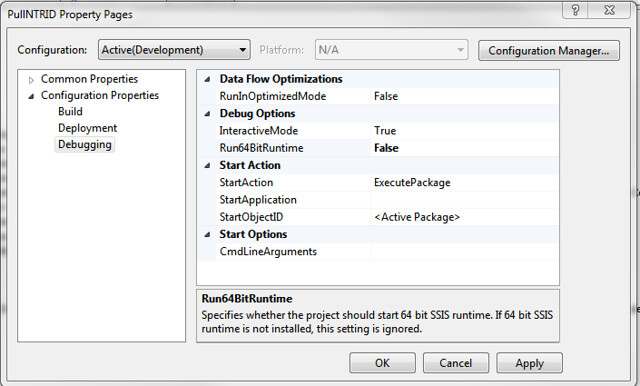
I still had trouble getting it to work, so I changed it to run "not" in 64-bit. Just go to Project/[Name of Project] Properties/Configuration Properties/Debugging under Debug Options and change "Run64BitRuntime" from default value of true to false.


This also means, if you are going to run it in 32-bit, you also have to tell the SQL Agent to run in 32-bit as well. Edit your job and then edit the right job step. Go to the Execution Options pane and check "Use 32 bit runtime". This property will only effect the package (+child packages) called in this job step.